Ubuntu 14.04 Zoneminder PPA not showing images or videos in the web console

When you use the Ubuntu package manager to install Zoneminder on Ubuntu 14.04 using the PPA, one configuration line defaults to the wrong path. This prevents the web console from showing you videos or events, although if you configure a camera it will capture pictures from it correctly and show you them in the Zone editing tools.

Specifically, under Options->Paths you need to change PATH_ZMS to:
/zm/cgi-bin/nph-zms

(adding the /zm to the front).

Error log messages look like the following:

ERR [socket_sendto( /var/run/zm/zms-299592s.sock ) failed: No such file or directory]

One other issue that could cause similar behavior is not having mod-cgi enabled in apache.

Making Thunderbird send messages in the background (like Outlook)

My work recently changed over to using Office365.com for their email. As long as Office365 supports IMAP and SMTP (it does) I don’t mind so much, as I can continue to use Thunderbird on my desktop to access my email.

However, because the mail servers are no longer located “on-campus” the lag to the SMTP server is much more noticeable than before. When I pressed the “Send” button, Thunderbird would sit there for 20 seconds with a progress bar sending the mail, interrupting my flow of email processing much more noticeably than when the server was hosted on the same network.

So I tweaked a few advanced settings in Thunderbird by going into Thunderbird Preferences (Edit->Preferences), clicking the “Advanced” tab, then selecting the “config editor” button and promising to be careful. [Newer versions of Thunderbird have these options under the tools -> Options menu. ]

mailnews.show_send_progress false
mailnews.sendInBackground true
offline.send.unsent_messages 1

Telling thunderbird to not show the progress indicator only hides the dialog, but the compose window still sits up on your screen (with no visible indicator of what it’s doing) until the mail is sent, so you also need to turn on “sendInBackground” to make the compose window disapear immediately after you press send.

This makes the message go immediately to your Local Folders -> Outbox, but DOES NOT SEND IT, until you select File -> Send Unsent Messages. Hence the “offline.send.unsent_messages 1” which tells Thunderbird to send unsent messages (from Folders -> Outbox) whenever it can. It still takes 20-30 seconds for the message to be sent, but it is done in the background now.

How I melted my ANOVA Precision cooker

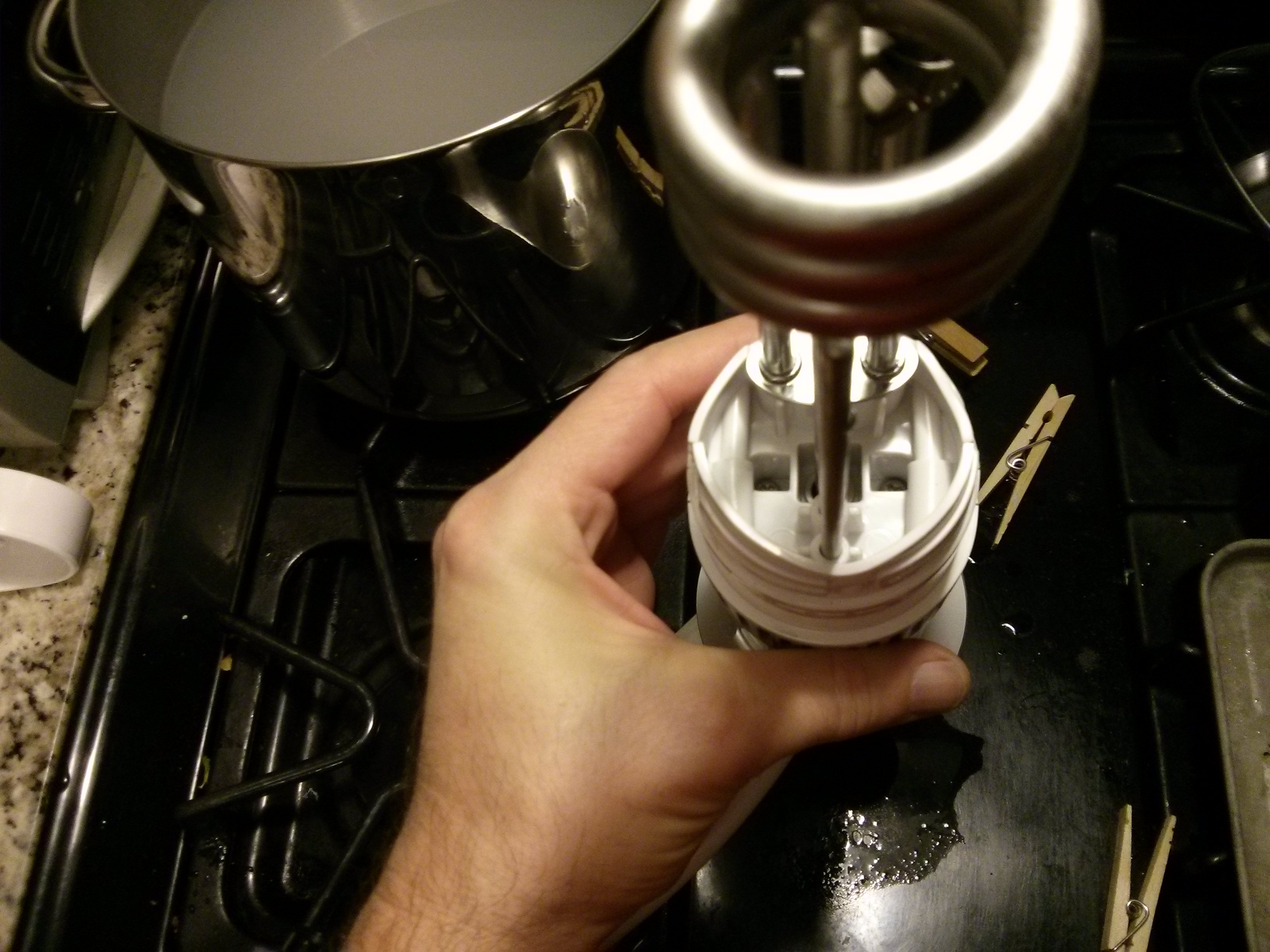
anova_melted3

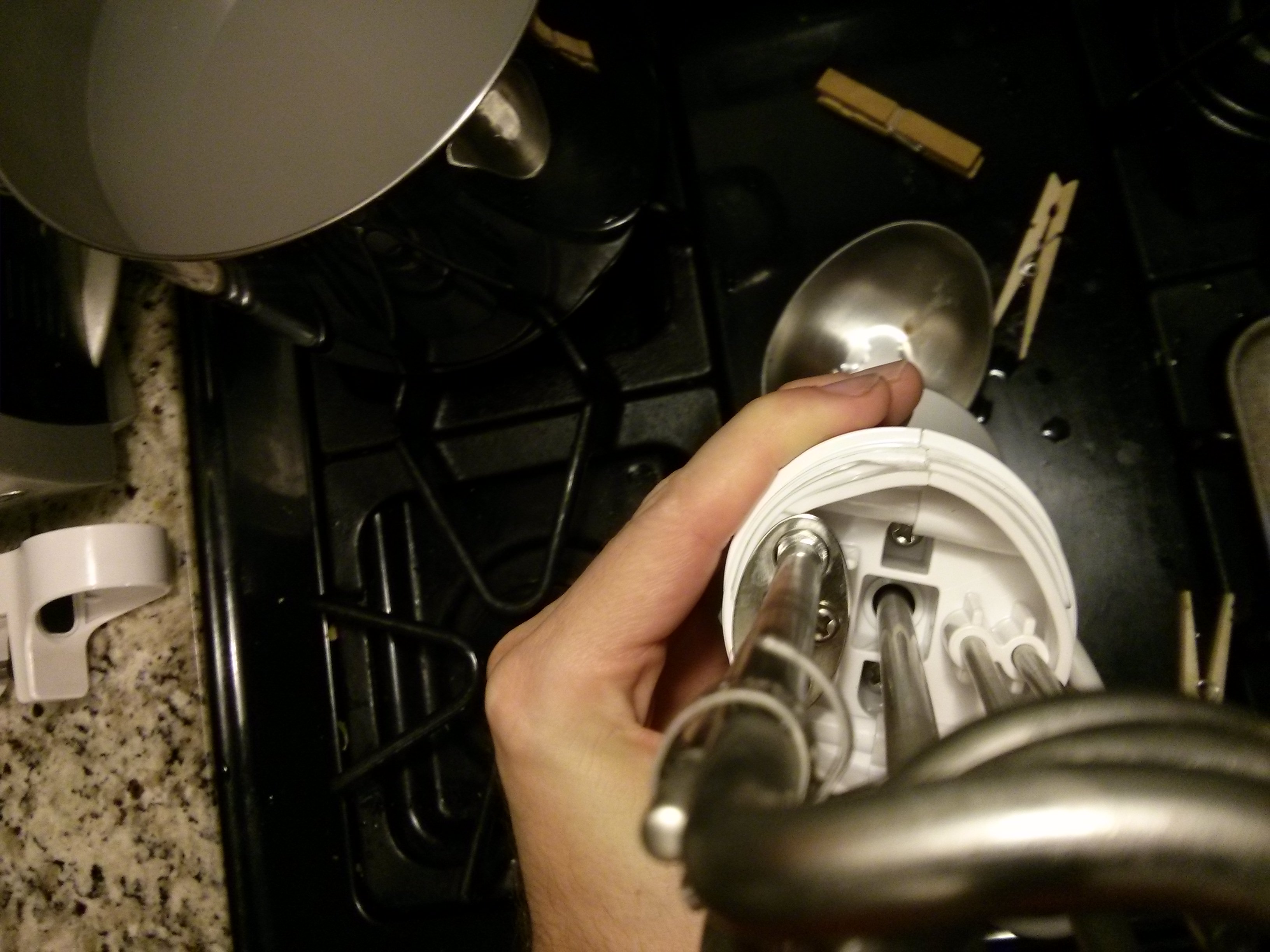
anova_melted2

I purchased an ANOVA precision cooker (a Sous-vide immersion heater) via their Kickstarter almost a year ago and have been having fun cooking things in water baths. (It makes cooking salmon so very easy….)

My wife told me about a recipe where you simmer a can of sweetened condensed milk in near boiling water for three hours to make Carmel. After my initial “But won’t it explode?” questions were answered (don’t use a pop top can and you are supposedly explosion safe…) I checked my ANOVA’s manual, and sure enough, it listed the Max temperature at 99 C, perfect for keeping water at a very low simmer without having to keep an eye on the range…[1].

Little did I know, the ANOVA can’t actually take being exposed to steaming water for 3 hours. Continue reading

Original Pebble Review + Application / Watchface Recommendations

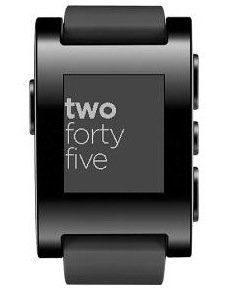
pebble_jet_black
I finally jumped on the “SmartWatch” bandwagon (after the CST – “World’s Thinest Watch” Kickstarter I’d been waiting on for two years finally gave up the ghost) purchasing a refurbished (Jet Black, original plastic) Pebble for $60 from Meh.com.

I can’t imagine paying $300+ for an Android Wear or apple Smartwatch when you can get the original Pebble’s new on ebay and discount websites for $50-$60. It does everything you really want a smart watch to do, at a fraction of the price.
Built in features I use and love:
Continue reading

Using rsync to selectively restore a backup (with/without dotfiles)

If you have backed up your entire home directory, and are restoring it onto a new computer, sometimes you do not want to copy over all of the .dotfiles (hidden files and directories that start with a period) in your home directory. This can be especially useful if you are upgrading the operating system version and many applications are also upgraded, and you want to re-configure them manually.

To restore everything BUT the .dotfiles in the main root directory you can use the following rsync command (the command must be executed from inside the backed up home directory):

rsync -av - --exclude="/.*" ./ /home/NewHomeDir

Note that this WILL copy all .dotfiles in directories under the main home directory.

I do recommend keeping all of your old home directory dotfiles in a separate “dotfile” directory, because invariably you will need something from in them (such as an SSH private key, GPG key, etc…)

You can copy JUST the .dotfiles from the home directory (including recursing into .dotdirectories) with the following command:

rsync -av /path/to/sourcedir/.??* /path/to/dest

The .??* selects only files/directories in the sourcedir that start with a dot. Note that .* alone would select ALL files and directories in the sourcedir.

HOWTO: Full Disk encryption on Ubuntu 12.04

How to set up an entirely encrypted disk using Ubuntu 12.04 (LTS):

Use the Alternative installer (text based) ISO image so that you have access to the LVM and Encrypted Disk options.

Assuming you want to keep a windows partition or some other pre-existing partitions intact, you will have to manually partition things instead of using the guided partitioner, so select “manual”.

Set up two partitions. One will be your /boot partition and should be around 250MB. This is the only data that will be unencrypted on the disk. The other will be your encrypted volume, that will hold an LVM physical volume that will contain all of your other partitions such as your swap partition, / (root) partition and any /home /var etc partitions that you want to set up. You should select “Use as:” “physical volume for encryption” when setting it up.

Then go back up to the top of the menu to the “Configure encrypted volumes” option (You may have to write changes to the partition table before you can do this.) Use the “Create encrypted volumes” option, and “check” / select the large LVM partition you just created. Then select “Finished” and it will prompt you for a pass-phrase.

Now, go back up to the top of the menu to the “Configure the Logical Volume Manager” option. This will prompt you to write changes to disk, and create an encrypted volume (defaults to using ext4).

Now, go back up to the top of the menu to the “Configure the Logical Volume Manager” option. Create a volume group (vg0 is as good of a name as any) on the /dev/mapper encrypted volume you created above.

Create a logical volume (I named mine “swap”) that will hold your swap partition. It should be at least as large as the maximum amount of RAM you ever intend on installing in your computer if you want to use suspend to disk (hibernate).

Depending upon how many other partitions you want (one big root, or /home and /var, etc”¦) create other partitions using the rest of the space inside of your LVM volume group, and select Finished.

Once you leave the LVM configuration area, you will see all of the LVM logical partitions that you have created. Select each of them and configure their mount point and file system type. (or use as Swap in the case of your swap partition.)

Write everything to disk (which will also format partitions) and you are ready to continue with the rest of your installation!

Thinkpad X31 – PAE cpu options with newer Linux Kernels

The Pentium M CPU that comes on IBM Thinkpad X31 laptops (circa 2003…) claims to not support PAE (Physical Address Extension ). Luckily however it DOES support PAE if your kernel forces it, which you can do by following the instructions here:

https://help.ubuntu.com/community/PAE

They explain: “A number of older Pentium M processors produced around 2003-4 (the Banias family) do not display the PAE flag, and hence a normal installation fails. However, these processors are in fact able to run the latest (and PAE-demanding) kernels if only the installation process is modified a little. The problem is not missing PAE, it’s about the processor not displaying its full capabilities.”

I can just imagine an IBM or Intel engineering thinking…it’ll be 10 years before operating systems require a PAE extension…none of these chips will still be running then…lets call it a night and not bother displaying the PAE flag…

Editing cellphone videos in Ubuntu Linux

If you have a slightly older android cell phone, chances are it records videos using the “3gp” format. When editing 3gp videos in OpenShot on Ubuntu, the audio and video can become unsynced. I have found that using the WinFF application you can convert the 3gp video into “DV – Raw DV for NTSC full screen” format, which will allow OpenShot to edit it correctly without having audio sync problems.

As a side note, sometimes when shooting videos with a cell phone, you may forget to rotate the phone to “landscape” orientation and be left with a vertical video that is rotated 90 degrees when shown on a computer. OpenShot can be used to rotate videos as follows:

  1. right click on the clip
  2. click Properties
  3. Choose the Effect tab (far right)
  4. Hit the “+” sign and then scroll down to “R” for Rotate.
  5. In the effects settings:
    • set the Rotate X, Y and Z to 0.00
    • set the Fixed Rotate X variable to 90.0.
  6. Hit apply